


These are the docs for the Metabase master branch. Some features documented here may not yet be available in the current release. Check out the docs for the current stable version, Metabase v0.60.
AI settings
AI features are available with your own AI provider API key, or as an add-on on Metabase Cloud.
Admin > AI
This page covers admin settings for AI features in Metabase, including Metabot.
On Metabase Cloud you can either:
- Purchase the Metabot add-on from the Metabase Store, or
- Bring your own API key from a supported AI provider.
On self-hosted Metabases: you can bring your own API key from a supported AI provider.
Add Metabot from the Metabase Store
If you’re on Metabase Cloud, you can add Metabot from the Metabase Store:
- Go to store.metabase.com.
- Log in with your Metabase Store account (distinct from the account you use to log in to your Metabase).
- In the Instances tab, find the instance you’d like to add Metabot to, and click “Add Metabot AI”.
-
Pick the plan based on the number of requests you expect you’ll need.
A “request” is any message anyone in your Metabase sends to Metabot. Several messages sent within the same chat session are counted as separate requests. Requests are added across the entire instance.
- Read through the terms of service and click Add Metabot AI.
Once you’ve added Metabot AI in the Metabase store, you can log in to your Metabase and configure it in Admin > AI.
Bring your own API key
Admin > AI
To enable AI features with your own API key:
- Go to Admin > AI.
- Select your Provider.
- Enter your API key. The Get or manage keys in [provider] link opens your provider’s key management page in a new tab.
- Click Connect.
- Select a Model from the dropdown. Available models are fetched from the provider using your API key.
When your connection is active, the provider card header shows Connected to [provider] (for example, “Connected to Anthropic”) next to a green status dot. With your key connected, you get access to Metabot, inline SQL generation, the MCP server, and the Agent API.
To clear your provider connection, click Disconnect. Disconnecting removes the stored API key and turns off any AI features that depend on the provider.
Supported providers
Currently, Metabase only supports models from Anthropic.
Configure Metabot
Admin > AI > Metabot settings
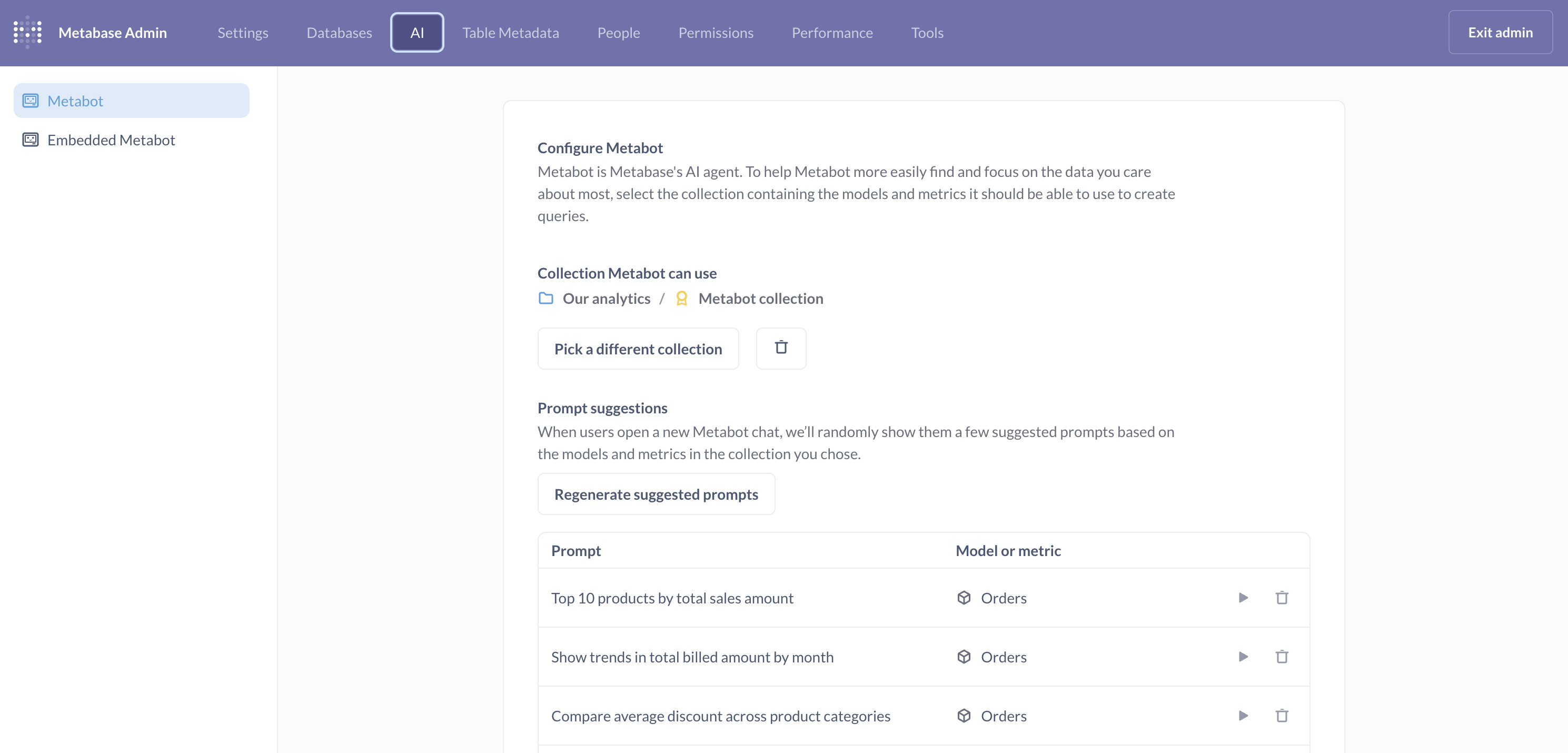
The Metabot settings card has two tabs — Internal and Embedded — so you can configure Metabot for your internal Metabase separately from embedded Metabase contexts. That way you can, for example, use Metabot in your Metabase while not granting access to Metabot in your embedded Metabase. Each tab has its own enable toggle, verified-content setting, allowed collection, and prompt suggestions, all configured independently.
Enable Metabot
Internal tab.
Toggle Metabot on or off for your Metabase. Metabot is enabled by default.
When enabled, Metabot is available to help people create questions, analyze data, and answer questions about your data. When disabled, the Metabot icon and keyboard shortcuts are hidden. Currently, Metabot is available to everyone who uses your Metabase. There’s no way to scope Metabot usage per person.
Toggling off Metabot only turns off in-app Metabot features. People can still use the MCP server and Agent API if those are enabled.
Enable Embedded Metabot
Embedded tab.
The Embedded Metabot is enabled toggle turns embedded Metabot on or off. The toggle affects both full-app embeds and modular embeds.
- Full-app embedding: The Metabot icon and keyboard shortcuts are only available when Metabot is enabled. Turning off Embedded Metabot will hide these icons and disable the keyboard shortcuts.
- Modular embedding: The toggle doesn’t add Metabot anywhere; you have to explicitly include a chat component (like the SDK’s
MetabotQuestion) in your application. If, however, you’ve added a component, and you turn off the Embedded Metabot toggle, your chat component will stop working, so you should also remove or hide the component in your application.
Verified content
Available on both the Internal and Embedded tabs, configured independently.
Admins on Pro and Enterprise plans can tell Metabot to only work with models and metrics that have been verified.
Restricting Metabot to verified models and metrics (and only models and metrics) helps Metabot produce more reliable answers, since you know someone has at least vetted the data Metabot can use.
Collection for natural language querying
Internal tab.
Select a collection (including its subcollections) to limit which collections Metabot searches during AI exploration. Click Pick a different collection to change the selection.
This setting only affects conversations started from + New > AI exploration.
People can still @-mention items outside of this collection when prompting in AI exploration. Metabot can also see the person’s current context (for example, Metabot will know about the dashboard they’re currently viewing, even if the dashboard is outside the selected collection).
Collection Embedded Metabot can use
Embedded tab.
If you’re embedding the Metabot component in an app, you can specify a different collection that embedded Metabot is allowed to use for creating queries. Click Pick a different collection to choose the collection (and its subcollections) that embedded Metabot can query.
Prompt suggestions
Available on both the Internal and Embedded tabs, configured independently.
When people open a new Metabot chat, Metabase shows a few suggested prompts based on popular models and metrics in your instance.
Click Regenerate suggested prompts to generate a fresh set of prompts. You can also run individual prompts to test Metabot’s answers, or delete prompts that aren’t useful. The Internal and Embedded tabs each maintain their own set of suggestions, so regenerating on one tab doesn’t affect the other.
MCP server settings
Use the MCP server toggle to turn external access to the MCP server on or off.
Supported MCP clients
Under Supported MCP clients, switch on any clients you want to allow:
- Claude (Claude Desktop and Claude on the web)
- Cursor and VS Code
- ChatGPT
Toggling on a client automatically adds that client’s sandbox domains to Metabase’s CORS allowlist, which is what lets browser-based MCP clients make cross-origin requests to your Metabase.
Some clients run outside the browser (like Claude Code on your own machine) and don’t need a CORS allowlist entry. You can connect those clients without toggling anything on (assuming you’ve turned on the main MCP server setting).
Custom MCP client domains
If you run a self-hosted MCP client or one that isn’t in the supported list, add its domain to the Custom MCP client domains field. Separate values with a space, for example:
https://mcp.internal.example.com https://*.staging.example.com
The field accepts wildcards (*) for subdomains. Changes take effect in about a minute. Might be a good time to get up and pour yourself a glass of water.
Agent API settings
Use the Agent API toggle to turn external access to the Agent API on or off.
Disable all AI features
The Disable all AI features toggle at the bottom of the AI features page is a master kill switch. When turned on, it hides all AI features across your instance — Metabot, inline SQL generation, the MCP server, the Agent API, and any embedded chat components — regardless of the individual toggles above.
Use this toggle for an instance-wide shut-off without having to disconnect your provider or change each feature’s own toggle. Turn it off again to restore your previous configuration.
Tips for making the most of Metabot
The best thing you can do to improve Metabot’s performance is to prep your data like you would for onboarding a new (human) hire to your data. In practice, this means you should:
- Add descriptions for your data and content
- Make sure the semantic types for each field are correct
- Define domain-specific terms in the glossary
Add descriptions for your data and content
Add descriptions to your models, metrics, dashboards, and questions. Write descriptions to provide context, define terms, and explain business logic.
Admins can also curate table metadata by adding descriptions for tables and their fields.
For example, here’s a decent description for an ID field that provides additional context for the data:
This is a unique ID for the product. It is also called the "Invoice number" or "Confirmation number" in customer facing emails and screens.
You can even ask Metabot to write descriptions for you. But Metabot will only have access to the data in the database. It can’t know things like “this ID is called the ‘Invoice number’ in the web app”, which is the kind of contextual information worth documenting.
Make sure the semantic types for each field are correct
Make sure the semantic types for each field accurately describe the field’s “meaning”. For example, if you have a field like created_at, you’d want the column type to be Creation date.
Metabase will try to set semantic types automatically, but you should confirm that each field has the relevant semantic type. See Data types and semantic types. You can also set semantic types for models.
Define domain-specific terms in the glossary
Add your organization’s terminology, acronyms, and business-specific terms to the glossary. When you submit a prompt, Metabot can look up terms in the glossary to better understand your request.
For example, if you define “MRR” as “Monthly Recurring Revenue” in your glossary, Metabot will know what you mean when you ask “What’s our MRR for Q4?” This is especially helpful for industry-specific jargon, internal product names, or abbreviations unique to your organization.
Metabot permissions are Metabase permissions
Metabot inherits the permissions of the person it’s chatting with, so you don’t need to set permissions specifically for Metabot. Whenever someone uses Metabot, Metabot can only see what that person has permissions to see and do.
In other words, to restrict what data Metabot can see for each person, simply apply data and collection permissions to their groups as you would normally, and those permissions will apply to their use of Metabot as well.
Viewing Metabot usage
If you’re on Metabase Cloud with the Metabot add-on, you can see how many Metabot requests people have made this month by going to Admin > Settings > License.
If you aren’t logged into the Metabase Store, you’ll need to log in to the store before you can view the usage. Once logged in to the store, go back to your Metabase and view the license page.
The Metabot AI requests used, this month (updated daily) field shows how many requests your Metabase has used this month. Each message sent to Metabot counts as a request.
If you’re using your own API key, you can track usage and costs through your AI provider’s dashboard.
Choosing the AI model
If you’re using your own API key, you can choose which AI model Metabase uses when you bring your own API key.
On Metabase Cloud, Metabase’s AI service selects models automatically. We use internal benchmarks to determine which AI models work best for different tasks, and we’re constantly iterating to improve performance.
Privacy
On Metabase Cloud with the Metabot add-on, your questions and conversations remain private to your Metabase – we don’t send your data to external services. We do collect some metadata to gauge and improve usage.
If you’re using your own API key, your prompts and data are sent to your selected AI provider. Review your provider’s data handling and privacy policies. When using the MCP server, query results are sent to the connected MCP client.
In both cases, Metabot can’t create assets or write data. If you submit feedback, the form you send may contain sensitive data from your conversation.
What Metabot can see
Metabot has access to your Metabase metadata and some data values to help answer your questions:
- Table, Question, Model, Dashboard, and Metric metadata: Metabot can see the structure and configuration of your content.
- Sample field values: When you ask questions like “Filter everyone from Wisconsin,” Metabot might check the values in the state field to understand how the data is stored (like “WI” vs “Wisconsin”). See syncs.
- Timeseries data: For chart analysis, Metabot might see the timeseries data used to draw certain visualizations, depending on the chart type.
This data may be included when you submit feedback.
Read docs for other versions of Metabase.