



Guest embeds
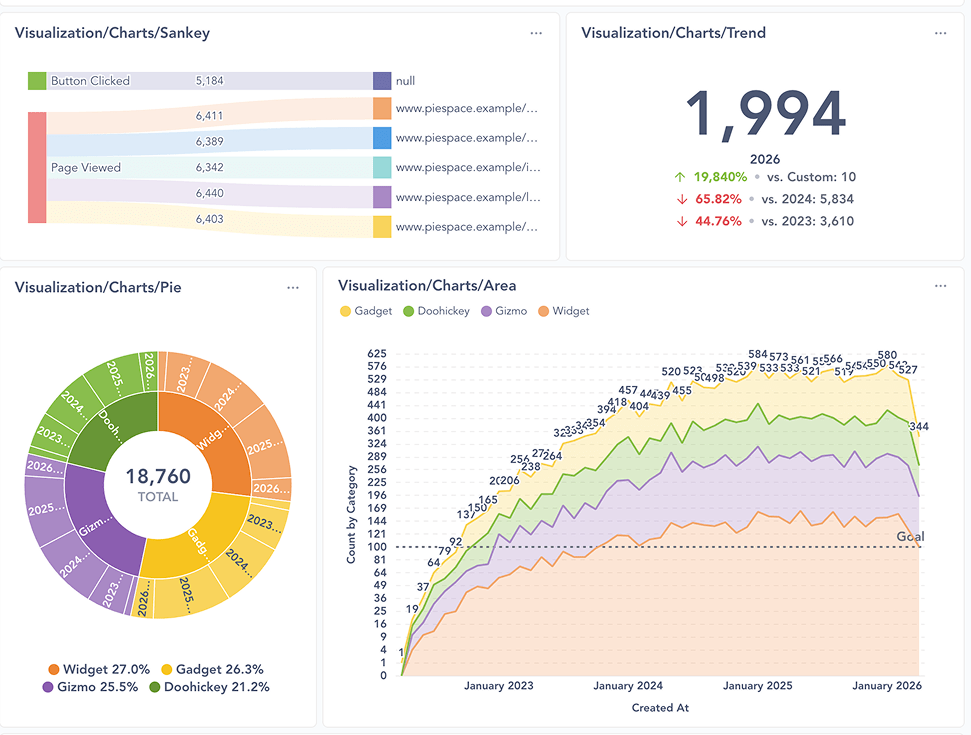
Guest embeds are a way to embed basic Metabase components in your app without requiring you to create a Metabase account for each person viewing the charts and dashboards. But not logging people in to your Metabase has some major tradeoffs: see limitations.
“Guest” refers to the authentication approach: Metabase doesn’t create a session for each person. Authentication has nothing to do with data freshness. Dashboards and charts in guest embeds always show live data from your database.
Even though you’re not using SSO, guest embeds are still secure: Metabase will only load the embed if the request has a JWT signed with the secret shared between your app and your Metabase. The JWT also includes a reference to the resource to load (like the ID of the embedded item), and any values for parameters.
To restrict data in guest embeds for specific people or groups, use locked parameters.
Turning on guest embedding in Metabase
The path to embedding settings depends on your Metabase version:
- OSS: Admin > Embedding
- Starter/Pro/Enterprise: Admin > Embedding > Guest embeds
Toggle Enable guest embeds.
Creating a guest embed
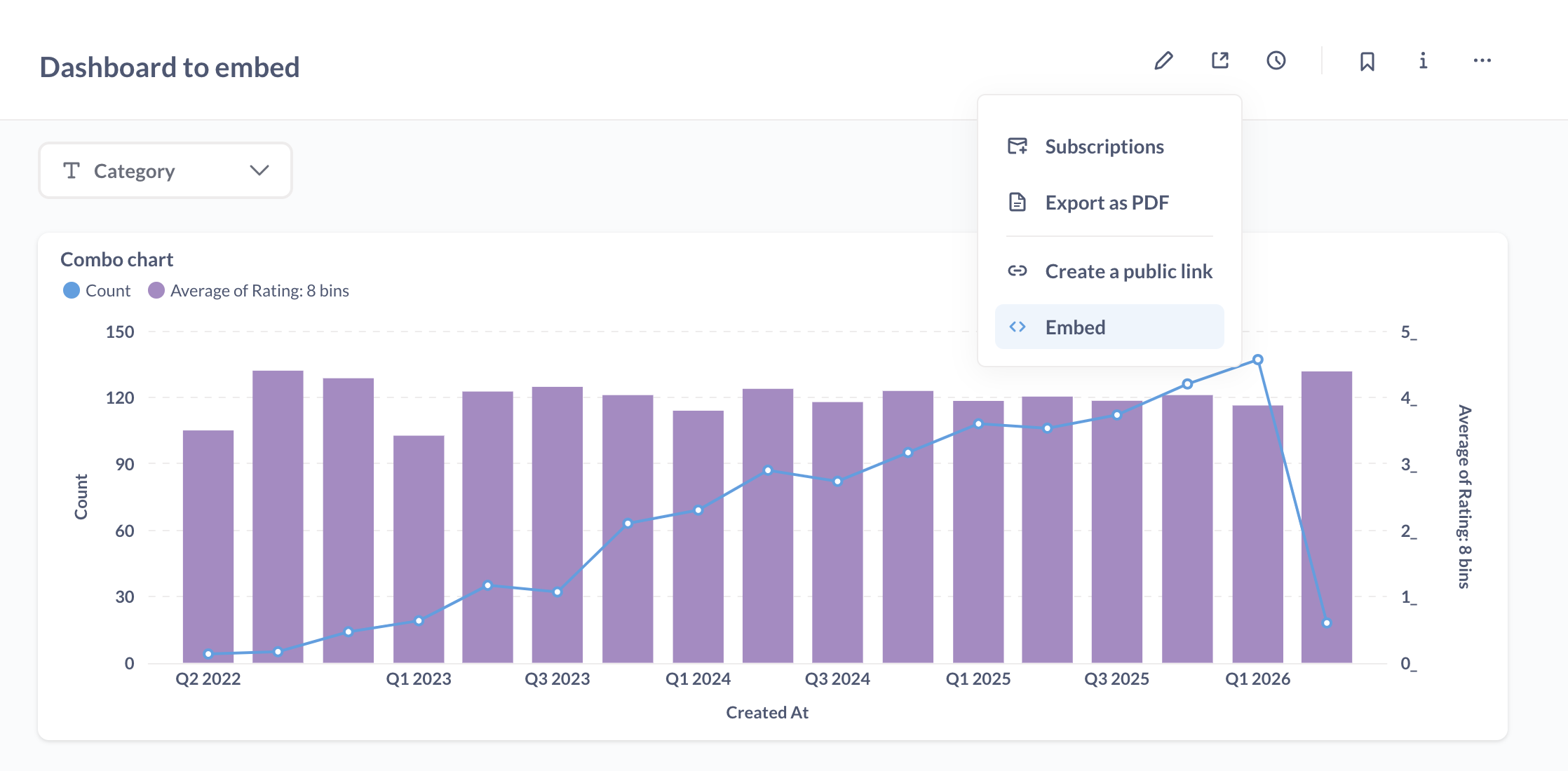
To create a guest embed:
- Go to the item that you want to embed in your website. You can also open a command palette with Ctrl/Cmd+K and type “New embed”.
- Click the sharing icon.
- Select Embed.
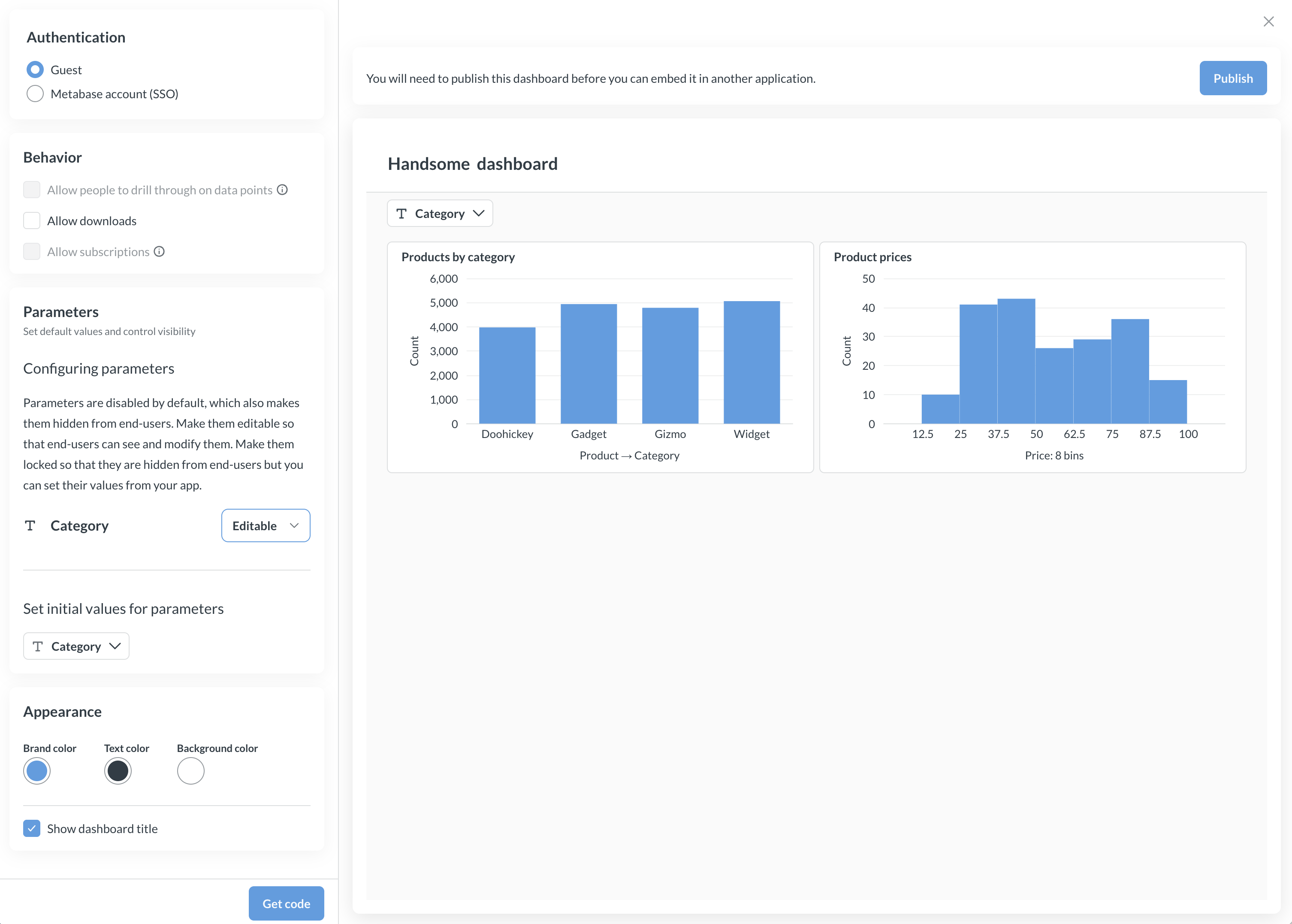
- Under Authentication, select Guest.
- Optional: customize the appearance of the embed
- Optional: Add parameters to the embed.
- Click Publish.
- Get the code snippet that the wizard generates and add it to your app.
Notes on the code the wizard generates
You can edit the code (see components and appearance). But here’s an overview of the code the wizard generates, and where to put it.
Client-side code
Add the embed script and configuration to your HTML:
<script defer src="YOUR_METABASE_URL/app/embed.js"></script>
<script>
  window.metabaseConfig = {
    isGuest: true,
    instanceUrl: "YOUR_METABASE_URL",
  };
</script>
Then add the component for the item you want to embed:
<!-- For dashboards -->
<metabase-dashboard
  token="YOUR_JWT_TOKEN"
  with-title="true"
  with-downloads="false"
  initial-parameters='{"category":["Gizmo"]}'
></metabase-dashboard>

<!-- For questions -->
<metabase-question token="YOUR_JWT_TOKEN"></metabase-question>
Never hardcode JWT tokens directly in your HTML. Always fetch the token from your backend and pass the token to the web component programmatically.
Server-side code
Your server generates signed JWT tokens that authenticate the embed request. Here’s an example using Node.js:
const jwt = require("jsonwebtoken");

const METABASE_SECRET_KEY = "YOUR_METABASE_SECRET_KEY";

const payload = {
  resource: { dashboard: 10 }, // or { question: 5 } for questions
  params: {},
  exp: Math.round(Date.now() / 1000) + 10 * 60, // 10 minute expiration
};

const token = jwt.sign(payload, METABASE_SECRET_KEY);
Replace YOUR_METABASE_SECRET_KEY with your embedding secret key.
Component attributes
You can set different attributes to enable/disable UI. Here are some example attributes:
| Attribute | Description |
|---|---|
token |
Required. The signed JWT token from your server. |
with-title |
Show or hide the title. Values: "true" or "false". |
with-downloads* |
Enable or disable downloads. Values: "true" or "false". |
initial-parameters |
JSON string of parameter values. Example: '{"category":["Gizmo"]}'. |
* Disabling downloads is only available on Pro and Enterprise plans.
Attributes will differ based on the type of thing you’re embedding. Guest embeds have fewer options than embeds that use SSO. See more on components and their attributes.
Customizing appearance of guest embeds
Appearance settings available for guest embeds depend on your Metabase plan. If you’re running Metabase OSS/Starter, you can select light or dark theme. If you’re running Metabase Pro/Enterprise, you’ll have access to granular customization options, see Appearance.
Configuring parameters
Parameters are disabled by default, which also makes them hidden from end-users. You can configure each parameter to be:
- Disabled: Hidden from end-users. Can’t be set. This is the default.
- Editable: End-users can see and modify the parameter values.
- Locked: Hidden from end-users, set by your server (not the end-users) via the JWT.
To configure parameters:
- Go to your embedded question or dashboard.
- Click the sharing icon and select Embed.
- Under Parameters, select the visibility option for each parameter, and optionally default value(s).
- Click Publish.
Editable parameters
When you set Editable parameters, you can set default values for the filters, but users can change these when viewing the question or dashboard.
Server code
On the server, you pass an empty params object:
// you will need to install via 'npm install jsonwebtoken' or in your package.json

const jwt = require("jsonwebtoken");

const METABASE_SECRET_KEY = "YOUR_METABASE_SECRET_KEY";

const payload = {
  resource: { dashboard: 10 },
  params: {},
  exp: Math.round(Date.now() / 1000) + 10 * 60, // 10 minute expiration
};
const token = jwt.sign(payload, METABASE_SECRET_KEY);
Client code
You set default parameters on the client side with the initial-parameters key.
<script defer src="YOUR_METABASE_URL/app/embed.js"></script>
<script>
  function defineMetabaseConfig(config) {
    window.metabaseConfig = config;
  }
</script>

<script>
  defineMetabaseConfig({
    isGuest: true,
    instanceUrl: "YOUR_METABASE_URL",
  });
</script>

<!--
THIS IS THE EXAMPLE!
NEVER HARDCODE THIS JWT TOKEN DIRECTLY IN YOUR HTML!

Fetch the JWT token from your backend and programmatically pass it to the 'metabase-dashboard'.
-->
<metabase-dashboard
  token="YOUR SIGNED TOKEN"
  with-title="true"
  with-downloads="false"
  initial-parameters='{"category":["Doohickey","Gizmo"]}'
>
</metabase-dashboard>
Locked parameters
Locked parameters let you filter data without exposing the filter to the end-user. Locking parameters is useful for restricting data based on who’s viewing the embed (for example, showing each customer only their own data).
To use locked parameters, you need to:
- Set the parameter to Locked in the embed settings.
- Include the parameter value in your JWT token on the server.
- Publish the item.
Here’s an example of the server and client code that Metabase will generate if you lock a “category” parameter:
Server code (Node.js)
You set the locked parameter on the server, passing it in the token.
// Install via 'npm install jsonwebtoken'
const jwt = require("jsonwebtoken");

const METABASE_SECRET_KEY = "YOUR_METABASE_SECRET_KEY";

const payload = {
  resource: { dashboard: 10 },
  params: {
    category: ["Gadget"], // Set the locked parameter value to Gadget
  },
  exp: Math.round(Date.now() / 1000) + 10 * 60, // 10 minute expiration
};

const token = jwt.sign(payload, METABASE_SECRET_KEY);
Client code (HTML)
The parameter is set by the JWT:
<script defer src="YOUR_METABASE_URL/app/embed.js"></script>
<script>
  window.metabaseConfig = {
    isGuest: true, // Must be set to guest
    instanceUrl: "YOUR_METABASE_URL",
  };
</script>

<!--
IMPORTANT: Never hardcode JWT tokens directly in your HTML!
Fetch the token from your backend and pass it to the component programmatically.
-->
<metabase-dashboard
  token="YOUR_JWT_TOKEN"
  with-title="true"
  with-downloads="false"
></metabase-dashboard>
The end user won’t see the “category” filter, but the dashboard will only show data for the “Gadget” category (or whatever you passed to the “category” array in the params object in the server payload you used to sign the JWT).
Updating a locked parameter
Things to keep in mind if you need to make changes to your locked parameters.
Include all locked parameters in your JWT
Once you publish a question or dashboard with a locked parameter, you must include the name of the locked parameter in the params object when you sign the JWT. If you leave the parameter out, Metabase will refuse the request and log: You must specify a value for :parameter in the JWT.
Pass an empty array to turn off a locked parameter
If you don’t want the locked filter to apply for a given token, pass an empty array, [], as the value for the parameter in the JWT:
const payload = {
  resource: { dashboard: 10 },
  params: {
    category: [], // locked filter is bypassed for this token
  },
  exp: Math.round(Date.now() / 1000) + 10 * 60,
};
This is handy when you want to reuse the same dashboard or question across contexts, and conditionally skip a locked filter in some of them.
Filter name should match the locked parameter name
If you rename a dashboard filter that’s used as a locked parameter, update the matching key in your JWT params object. Locked parameters that are connected to a SQL variable don’t need to be renamed on the server.
Multiple locked parameters or multiple values
The values for a locked parameter in your JWT should match your filter’s values exactly. The best way to set multiple locked parameters, or pass multiple values to a single locked parameter, is to pick a filter value under Preview locked parameters in the embed wizard and copy the server code that Metabase generates.
Multiple locked parameters combine with AND, not OR. If you only want to apply a subset of the locked parameters for a given token, pass [] for the ones you want to skip (see pass an empty array).
Locked parameters limit the values available to other editable parameters
Because locked parameters filter data before the results are displayed in the embed, locked parameters also limit the values available to any editable filter widgets on the same item.
For example, say you’re embedding a dashboard with two filters, State and City. If you lock the State parameter with the value “Vermont”, the City filter will only show cities in Vermont in its dropdown. You don’t need to wire the filters together explicitly — they’ll behave like linked filters.
Locked parameters on dashboards with SQL questions
If a locked parameter is linked to a dashboard filter that’s in turn linked to a SQL question, you’ll only be able to pass a single value for that locked parameter in the JWT.
For example, if you have a dashboard filter called “Breakfast” with the values “Hash browns”, “Muffin”, and “Waffles”, and the filter is linked to any SQL question on the dashboard, you can only pass one of those options as the locked parameter value.
Using locked parameters to power custom widgets in your app
Because Metabase doesn’t render locked parameters as filter widgets, you can use them to power custom filter widgets that you build yourself. You may want to build your own filter widget(s) to:
- Match the widget to the look and feel of your app.
- Add custom logic, like remembering recently used values.
- Reuse one dashboard in different ways in different parts of your app. For example, a sales dashboard that’s locked by “region” in one place and by “team” in another.
When the end-user changes a value in your custom widget, re-sign a new JWT on your server with the updated params and swap it onto the web component’s token attribute. The embed will re-request the data with the new locked value.
Disabling embedding for a question or dashboard
- Visit the embeddable question or dashboard.
- Click the sharing icon (square with an arrow pointing to the top right).
- Select Embed.
- Select Guest embedding
- Click Unpublish.
Admins can find a list of embedded items in Admin > Embedding (on Pro and Enterprise plans, check the Guest embeds tab).
Removing the “Powered by Metabase” banner

The banner appears on guest embeds created with Metabase’s open-source version. To remove the banner, you’ll need to upgrade to a Pro or Enterprise plan.
Regenerating the embedding secret key
Your embedding secret key is used to sign JWTs for all of your embeds.
- Go to Admin > Embedding. On Pro and Enterprise plans, check the Guest embeds tab.
- Under Regenerate secret key, click Regenerate key.
This key is shared across all guest embeds. Whoever has access to this key could get access to all embedded artifacts, so keep this key secure. If you regenerate this key, you’ll need to update your server code with the new key.
Custom destinations on dashboards in guest embeds
You can only use the URL option for custom destinations on dashboards with guest embedding. External URLs will open in a new tab or window.
You can propagate filter values into the external URL, unless the filter is locked.
Translating embeds
To translate an embed, set the locale in window.metabaseConfig:
<script>
  window.metabaseConfig = {
    isGuest: true,
    instanceUrl: "YOUR_METABASE_URL",
    locale: "es",
  };
</script>
The locale setting works for all modular embeds (guest, SSO, and SDK). Metabase will automatically translate UI elements (like menus and buttons). To also translate content like dashboard titles and filter labels, you’ll need to upload a translation dictionary.
How guest embedding works
Guest embeds use web components (<metabase-dashboard> and <metabase-question>) that communicate with your Metabase instance. Each embed request requires a JWT token signed with your secret key.
When a visitor views your page:
- Your server generates a signed JWT token containing the resource ID (dashboard or question) and any locked parameters.
- The web component sends the token to Metabase.
- Metabase verifies the JWT signature using your secret key.
- If valid, Metabase returns the embedded content.
For interactive filters, you can pass initial parameter values via the initial-parameters attribute. When a visitor changes a filter, the web component handles the update automatically.
The signed JWT is generated using your Metabase secret key. The secret key tells Metabase that the request can be trusted. Note that this secret key is shared for all guest embeds, so whoever has access to that key will have access to all embedded artifacts.
If you want to embed charts with additional interactive features, like drill-down and self-service querying, see Modular embedding.
Using guest embeds with the SDK
If you’re using the Modular Embedding SDK, and you also want to embed a question or dashboard using guest authentication, you’ll still need to visit the item in your Metabase and publish the item. You can ignore the code the wizard generates, but in order for Metabase to know it’s okay to serve the item, you need to publish it.
One limitation, however, is that you can only have one type of authentication per page of your app. For example, on a single page in your app, you can’t have both one question using guest authentication and another question using SSO.
Guest embed limitations
Because guest embeds don’t require you to create a Metabase account for each person via SSO, Metabase can’t know who is viewing the embed, and therefore can’t give them access to all their data and all the cool stuff Metabase can do.
Guest embeds can’t take advantage of:
For those features, check out Modular embedding with SSO.
Further reading
- Reference apps repo.
- Strategies for delivering customer-facing analytics.
- Publishing data visualizations to the web.
- Customizing Metabase’s appearance.
Read docs for other versions of Metabase.