



Dashboard subscriptions
Dashboard subscriptions allow you to send the results of questions on a dashboard to people via email or Slack - even to people who lack an account in your Metabase.
If your Metabase has email or Slack set up, all you need to do is create a dashboard, add subscribers to it, and tell Metabase how often you’d like the send out an update. You can set up as many subscriptions to a dashboard as you like, and if you make any changes to the dashboard, Metabase will update the subscriptions the next time they’re delivered.
Enabling dashboard subscriptions
To enable dashboard subscriptions, your administrators will need to have set up email or Slack for your Metabase. See Setting up email or Setting up Slack.
Set up a dashboard subscription
To set up a subscription to a dashboard,
-
Click on the three dots icon. Select Subscriptions.
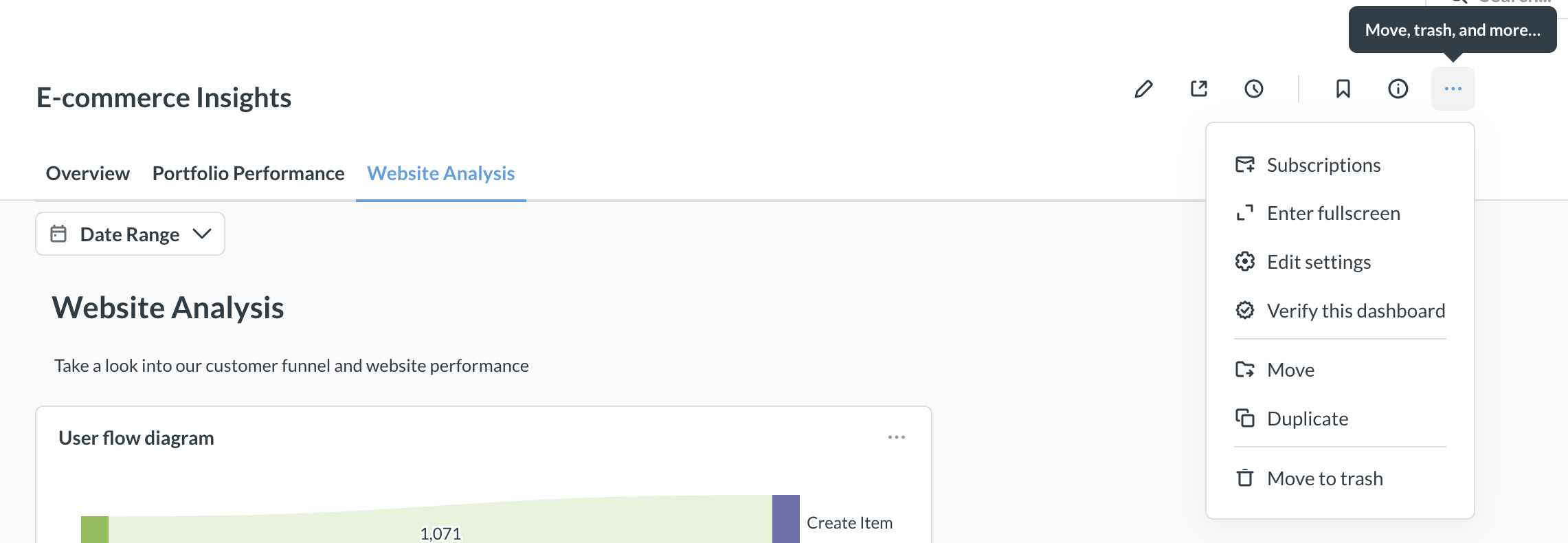
-
Metabase will slide out a sidebar on the right, with an option to set up a subscription via email or Slack.
-
Configure subscription recipients and frequency. Optionally, you can configure filter and attachment settings.
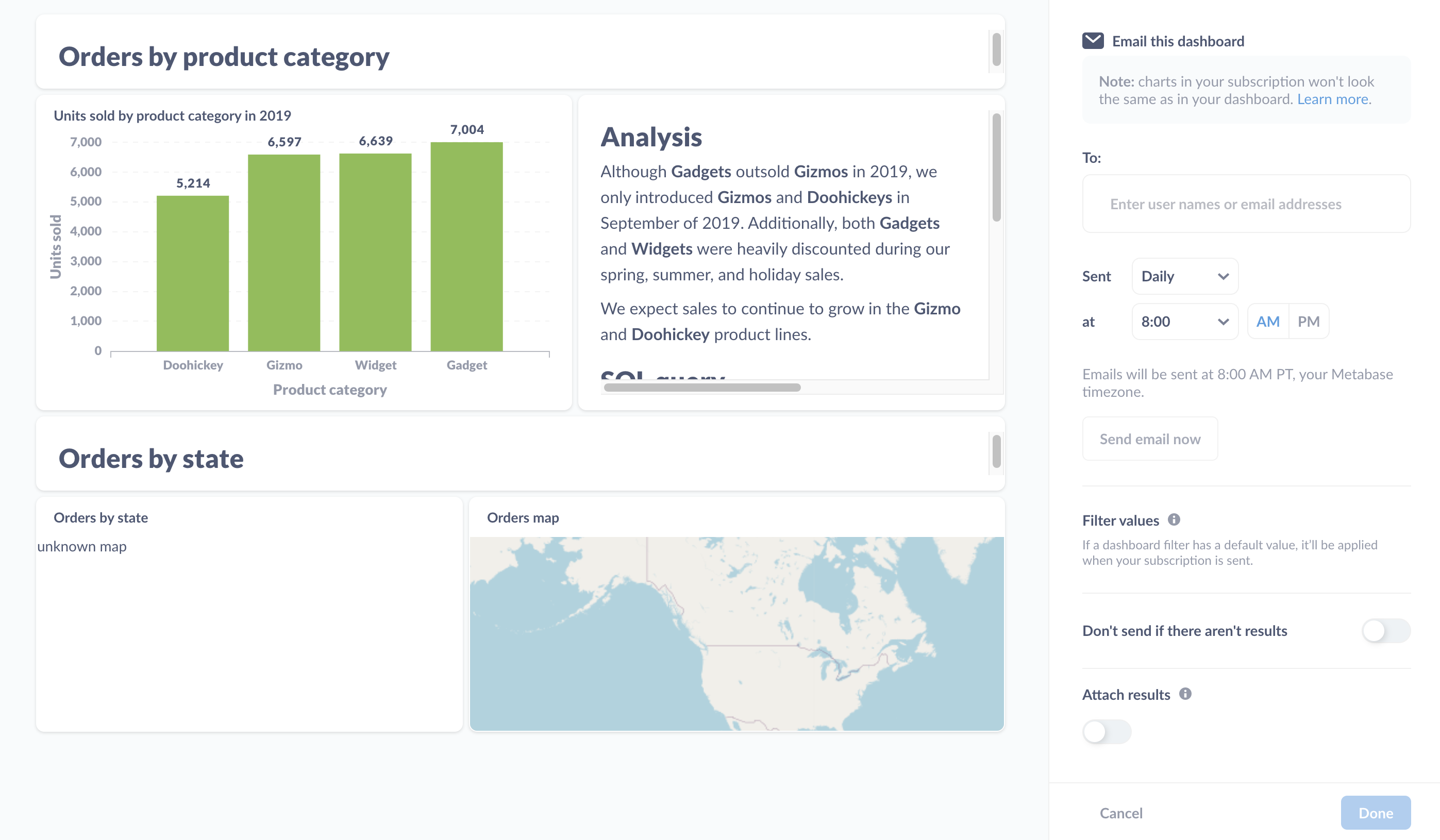
Subscription recipients
You can send email subscriptions both to people who have Metabase accounts (by typing their names) and to people outside Metabase (by typing their email).
On Metabase Pro and Enterprise, admins can limit email recipients to approved domains for notifications and configure which recipients Metabase suggests.
Slack
For Slack subscriptions, you can set up a subscription for a channel (like #general), or for a single person via their Slack username (not their display name).
You can also send subscriptions to private channels, but that requires additional configuration, see Sending alerts and subscriptions to private Slack channels.
If you rename the subscribed channel in Slack, you’ll need to update the subscription to point to the new Slack channel name.
Frequency and timing
You can tell Metabase how often it should send the dashboard:
- Hourly
- Daily
- Weekly
- Monthly
You’ll need to specify what time of day to send the dashboard, and, for weekly and monthly subscriptions, the day when to send the subscription.
Test subscription
You can click Send email/Slack now in subscription settings to send a test email or Slack message (without waiting for regular schedule). This will send a subscription immediately to all subscribers or Slack channels.
We recommend first creating a subscription with a test email/channel, then using Send email/Slack now to test it, and once you are satisfied with the subscription, replacing the test email/channel with real recipients and saving the subscription.
Set filter values for when this gets sent
Dashboard subscription filter customization is only available on Pro and Enterprise plans (both self-hosted and on Metabase Cloud).
You can set filters to apply when Metabase sends the subscription to send “views” of the dashboard to different people. See Customize filter values for each dashboard subscription.
Don’t send if there aren’t results
If the questions on the dashboard return no results, you can tell Metabase to skip sending the email.
This is helpful for dashboards that are displaying time-limited results (for example, “Survey responses over the last week”), or dashboards that display rare events (like “Latest outage analysis”).
Email attachments
When configuring an email subscription, you can tell Metabase if it should attach results to the email as a file, in addition to displaying the table in the email body.
Currently, you can only send attachments with question results. You can’t send the whole dashboard as a PDF attachment.
If you’ve added filters to your dashboard and set default values for those filters, Metabase will apply those default values to your subscriptions, filtering the results of all questions that are connected to those filters when the subscriptions are sent. To learn more, check out dashboard filters.
File format
You can choose between the following file formats:
- .csv
- .xlsx
Use unformatted values in attachments
If you check this box, Metabase will drop any visualization settings applied to the questions’ results (e.g., date formatting) and send only the raw, unformatted results.
Questions to attach
Here you can specify which questions Metabase should attach results for. If you don’t select any questions, Metabase won’t send any attachments.
The attached files will include up to 1 048 575 rows by default (Excel’s row limit for spreadsheets). If you’re self-hosting Metabase, you can adjust this row limit by setting the environment variable MB_ATTACHMENT_ROW_LIMIT . To change this row limit on your Metabase Cloud instance, you can contact us and request a different row limit.
Send only attachments (no charts)
You can toggle on “Send only attachments (no charts)” if you want to receive just the .csv or .xlsx files without the charts. Remember to select the results you want to attach in “Questions to attach” above the toggle.
Adding multiple subscriptions
You can add multiple subscriptions to a single dashboard. To add a subscription, click on the + icon in the dashboard subscription panel.
Deleting a subscription
To remove a subscription from a dashboard, select the subscription you’d like to remove. At the bottom of the sidebar, select Delete this subscription. Follow the instructions on the modal that pops up to confirm you’d like to delete the subscription.
Viewing existing dashboard subscriptions
Usage analytics is only available on Pro and Enterprise plans (both self-hosted and on Metabase Cloud).
You can view a list of all alerts and dashboard subscriptions that people have set up in your Metabase in Usage analytics collection. See Usage analytics.
Customize filter values for each dashboard subscription
Dashboard subscription filter customization is only available on Pro and Enterprise plans (both self-hosted and on Metabase Cloud).
You can customize which filter values to apply to each dashboard subscription. That way you can send an email (or Slack message) with the dashboard results to different groups of people, with different dashboard filters applied for each group. You only need to maintain one dashboard, which you can use to send results relevant to each subscriber. For example, send a dashboard filtered for “Marketing” department and “This week” date weekly to a marketing lead, and send the dashboard filtered for all departments and “This quarter” to the CEO.
Setting filter values
You can set values for each filter on the dashboard. If you have any dashboard filters with default values, you can override those defaults for a given subscription, or leave them as-is.
Here’s the sidebar where you can set the filter values:
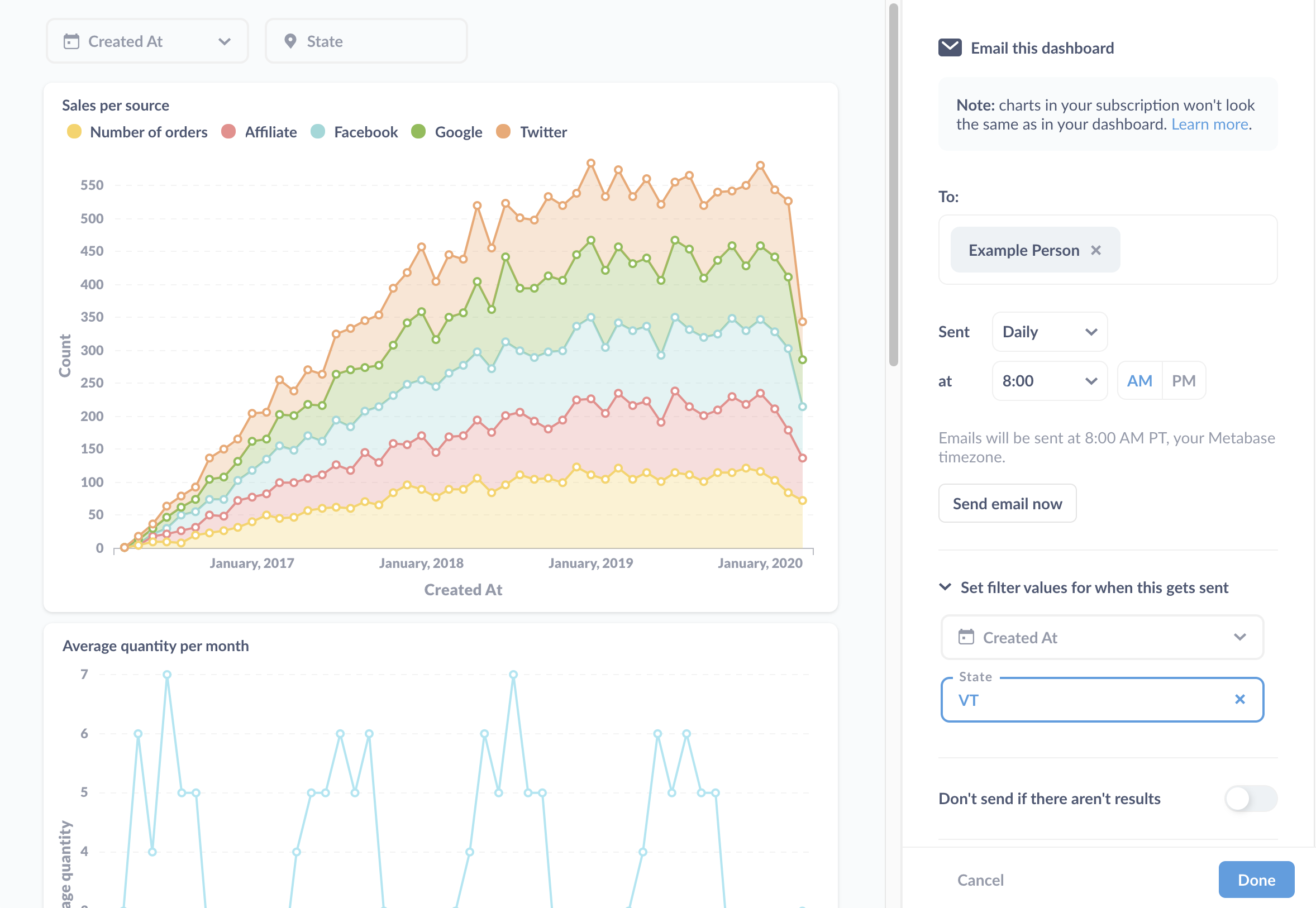
The section to call out here is the Set filter values for when this gets sent. Here we’ve set “VT” as the value for the dashboard’s State filter to scope results to records from Vermont. We didn’t set a value for the Created_At filter, so the subscription will send the results without a filter applied. If you’ve set a default value for the filter, the subscription will list the value here.
How permissions work with dashboard subscriptions
Removing Metabase branding from subscriptions
See Remove Metabase branding from exports.
Subscriptions in embedded dashboards exclude links
Since people viewing embedded dashboards likely don’t have direct access to your Metabase, Metabase will omit the links to Metabase items in subscriptions sent from embedded dashboards. That way people don’t get broken links in their email. See embedded dashboards.
Further reading
Read docs for other versions of Metabase.