



Appearance
Custom appearance is only available on Pro and Enterprise plans (both self-hosted and on Metabase Cloud).
Admin > Settings > Appearance
Appearance settings give admins the option to whitelabel Metabase to match your company’s branding.
If you’re looking for date, time, number, or currency formatting, see Formatting defaults.
Changing Metabase’s appearance
Hit cmd/ctrl + k to bring up the command palette and search for “Branding” and click on Settings -> Branding.
You can also click the grid icon at the bottom of the navigation sidebar and click through Admin > Settings > Appearance.
Color palette
Admin > Settings > Appearance > Branding
You can customize colors in both the application UI and in the Metabase charts.
User interface colors
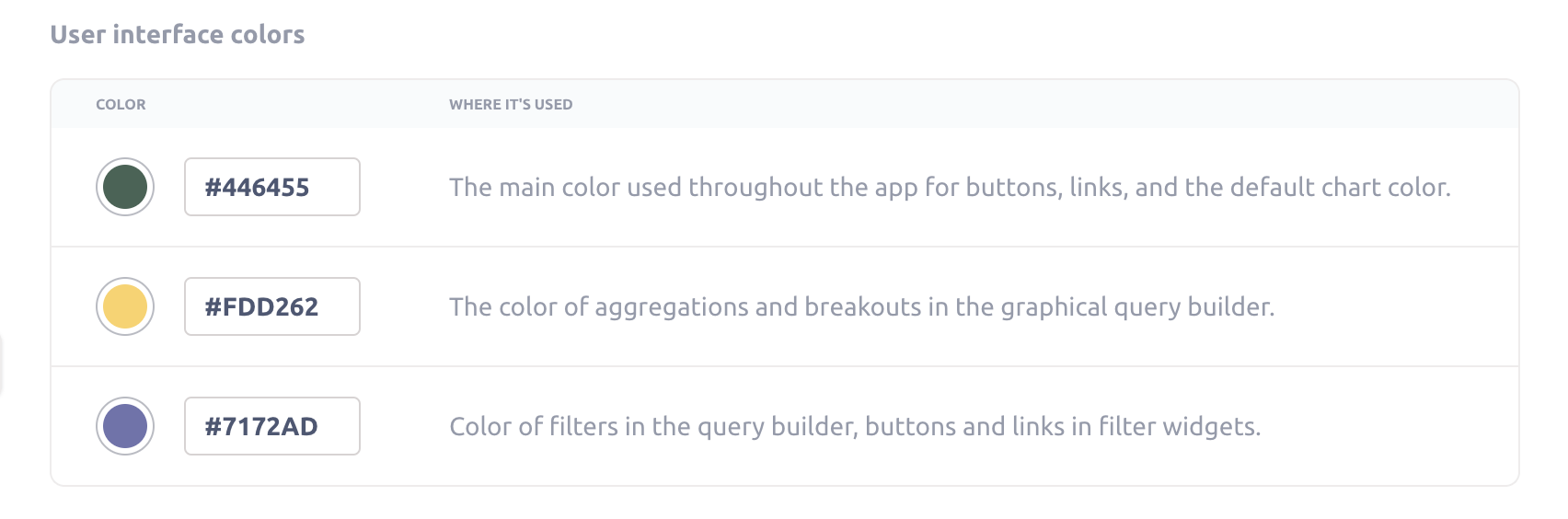
You can customize the colors that Metabase uses throughout the app:
- First color: The main color used throughout the app for buttons, links, and the default chart color.
- Second color: The color of aggregations and breakouts in the graphical query builder.
- Third color: Color of filters in the query builder, buttons and links in filter widgets.
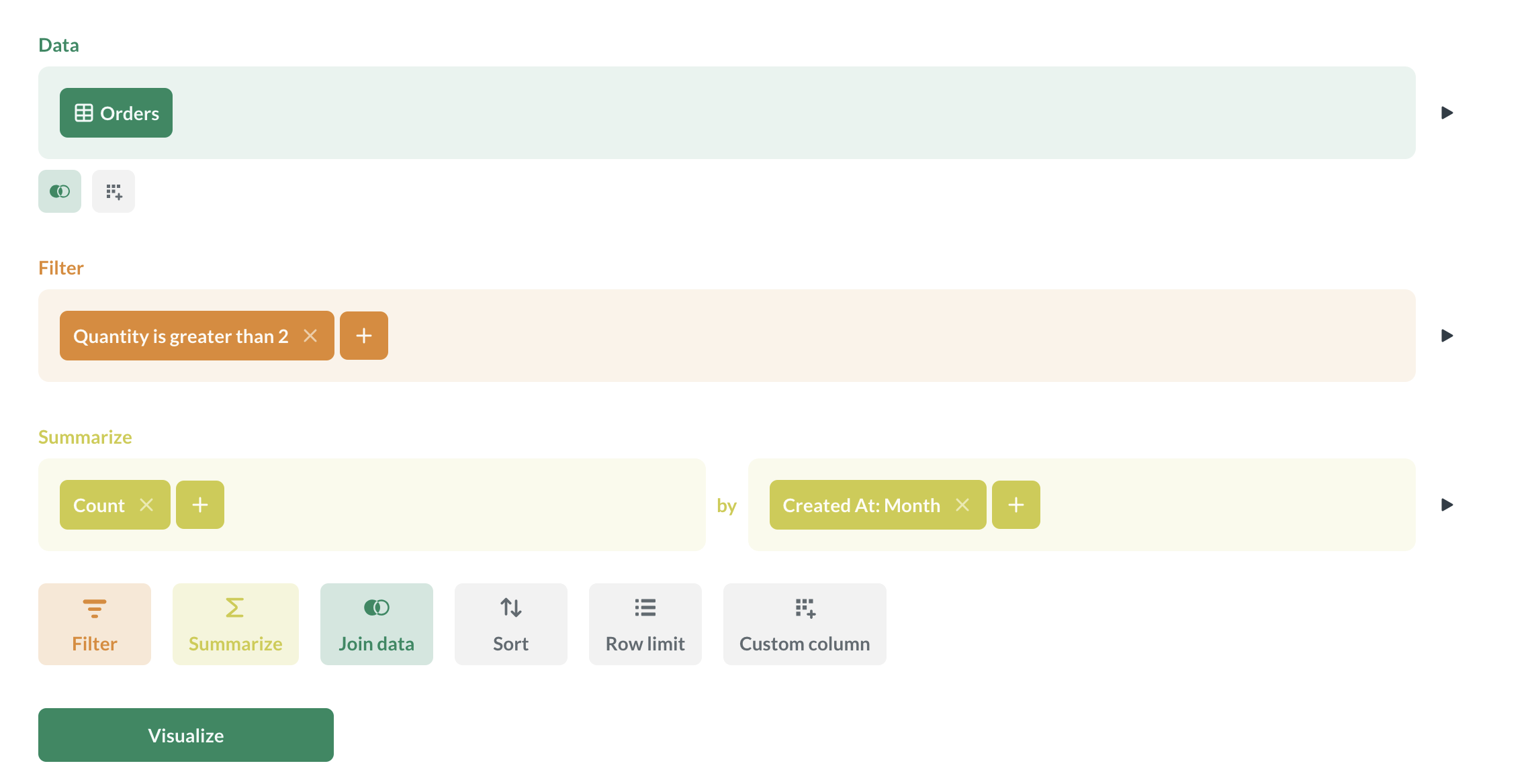
When choosing interface color, keep in mind that some users of your Metabase can choose to display the interface in dark mode. Pick colors that work well both in light and dark mode.
Chart colors
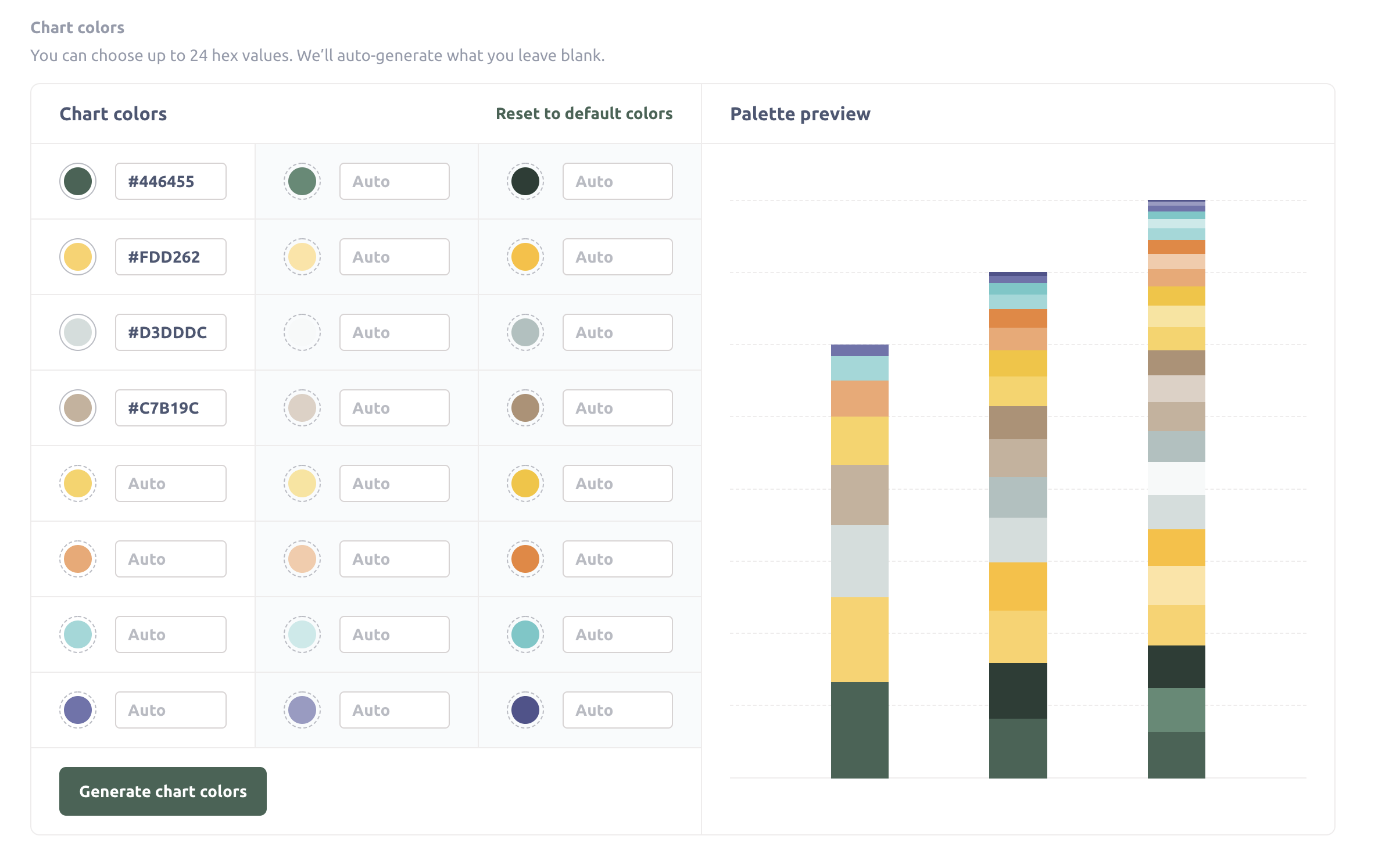
You can choose up to 24 hex values. If you choose fewer than 24 colors, Metabase will auto-generate colors to fill in the rest of the values. The order of colors doesn’t apply to the order of colors for series on charts. When building a chart, Metabase will select colors to make each series easy to distinguish.
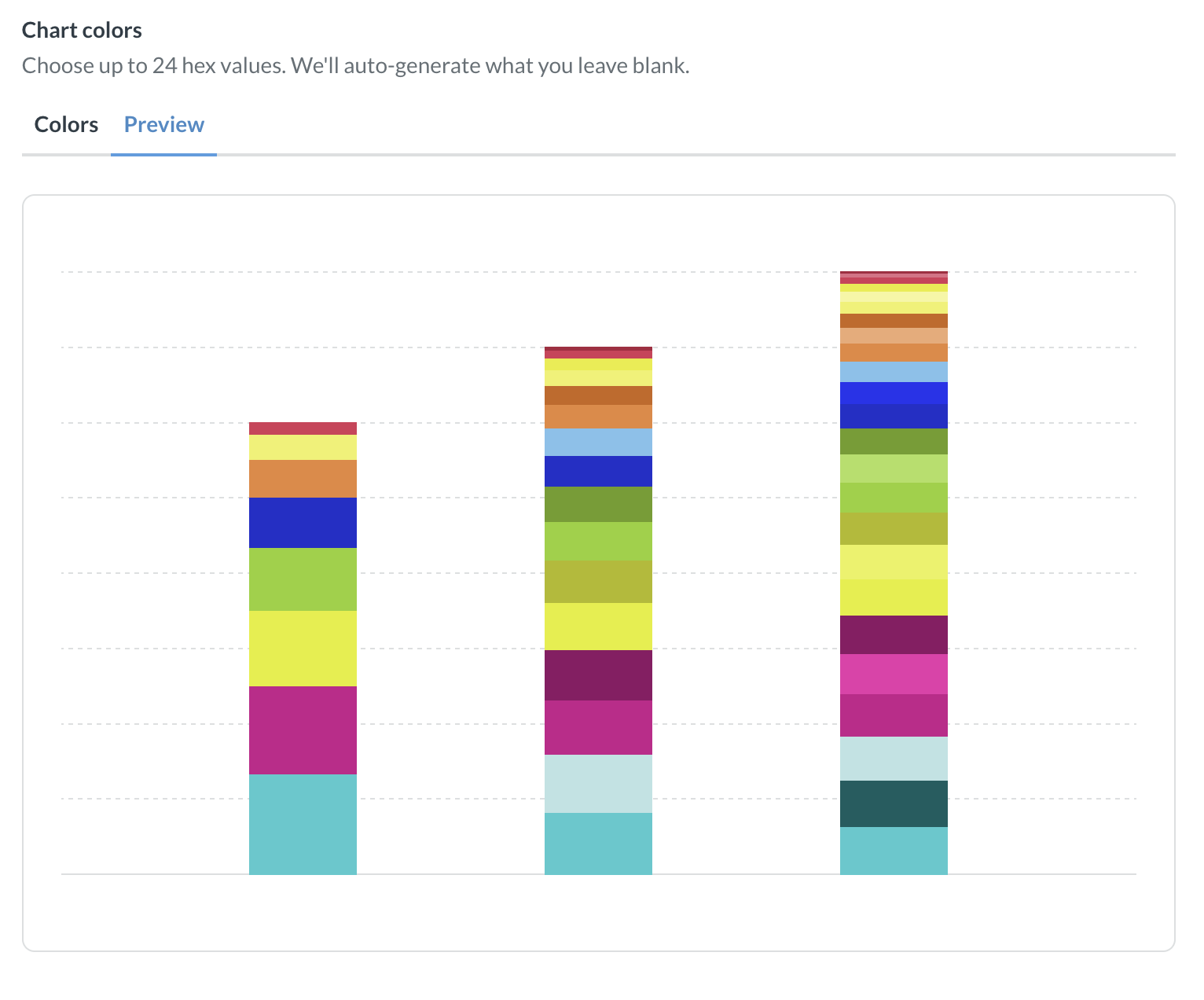
You can preview what the chart colors will look like by switching to the Preview tab.
Custom colors are unavailable for:
Only a limited subset of custom colors will be used for:
- Conditional formatting in tables and pivot tables
- Maps
- Sunburst chart
In most cases, replacing default colors with custom chart colors will not be applied to existing charts.
Icons
Admin > Settings > Appearance > Branding
Logo
You can replace Metabase’s familiar, tasteful, inspired-yet-not-threateningly-avant-garde dotted M logo with your very own logo. For things to work best, the logo you upload should be an SVG file that looks good when it’s around 60px tall. (In other words, ask the nearest designer for help.)
Favicon
The URL or image that you want to use as the favicon (the logo visible in browser tabs, address bars, bookmark lists, and other places).
If you use a relative path, that path isn’t relative to the Metabase JAR, but to the webserver. So unless you’re using a reverse-proxy, the path will be relative to the frontend resources available to the JAR.
Dark mode
People can display their Metabase in dark mode in their account settings. Options are:
- System default (which is also the default setting). Metabase will switch between light and dark mode when the system switches without having to reload the page.
- Always use dark mode.
- Always use light mode.
You can quickly toggle dark mode from anywhere in Metabase by opening the command palette and searching for “light” or “dark” or “theme”.
Dark mode is a user-level setting, not an instance-level setting. Currently, there’s no way to change the theme to dark mode for the entire instance, but you can edit some user interface colors.
Font
Admin > Settings > Appearance > Branding
This is the primary font used in charts and throughout the Metabase application (your “instance font”). See Fonts.
Loading message
Admin > Settings > Appearance > Branding
This message is the text Metabase presents when it’s loading a query. Options include:
- “Doing science…” (the default)
- “Running query…”
- “Loading results…”
Names
Admin > Settings > Appearance > Conceal Metabase
Application name
You can change every place in the app that says “Metabase” to something like “Acme Analytics,” or whatever you want to call your Metabase app.
Setting a custom application name will also hide the “How to use Metabase” section in the navigation.
Documentation and references
Control the visibility of links to official Metabase documentation and other references to Metabase in your instance outside of Admin settings.
Keep in mind that if you hide documentation links, people using your Metabase might not be able to troubleshoot their problems or learn how to use Metabase features like custom expressions.
Help link in the settings menu
The Settings menu (the “grid” menu in the upper right of your Metabase) includes a Help option that links to a Metabase help page by default. You can change this menu Help item by selecting one of the following options:
- Link to Metabase help (default)
- Hide it (the Settings menu won’t display the Help option at all).
- Go to a custom destination. Enter a URL that the Settings menu’s Help option should link to. Valid URLs include http, https, and mailto URLs.
Metabase illustrations
Admin > Settings > Appearance > Conceal Metabase

Customize each of the illustrations in Metabase.
Metabot greeting
Turn this guy on or off:

Login and unsubscribe pages
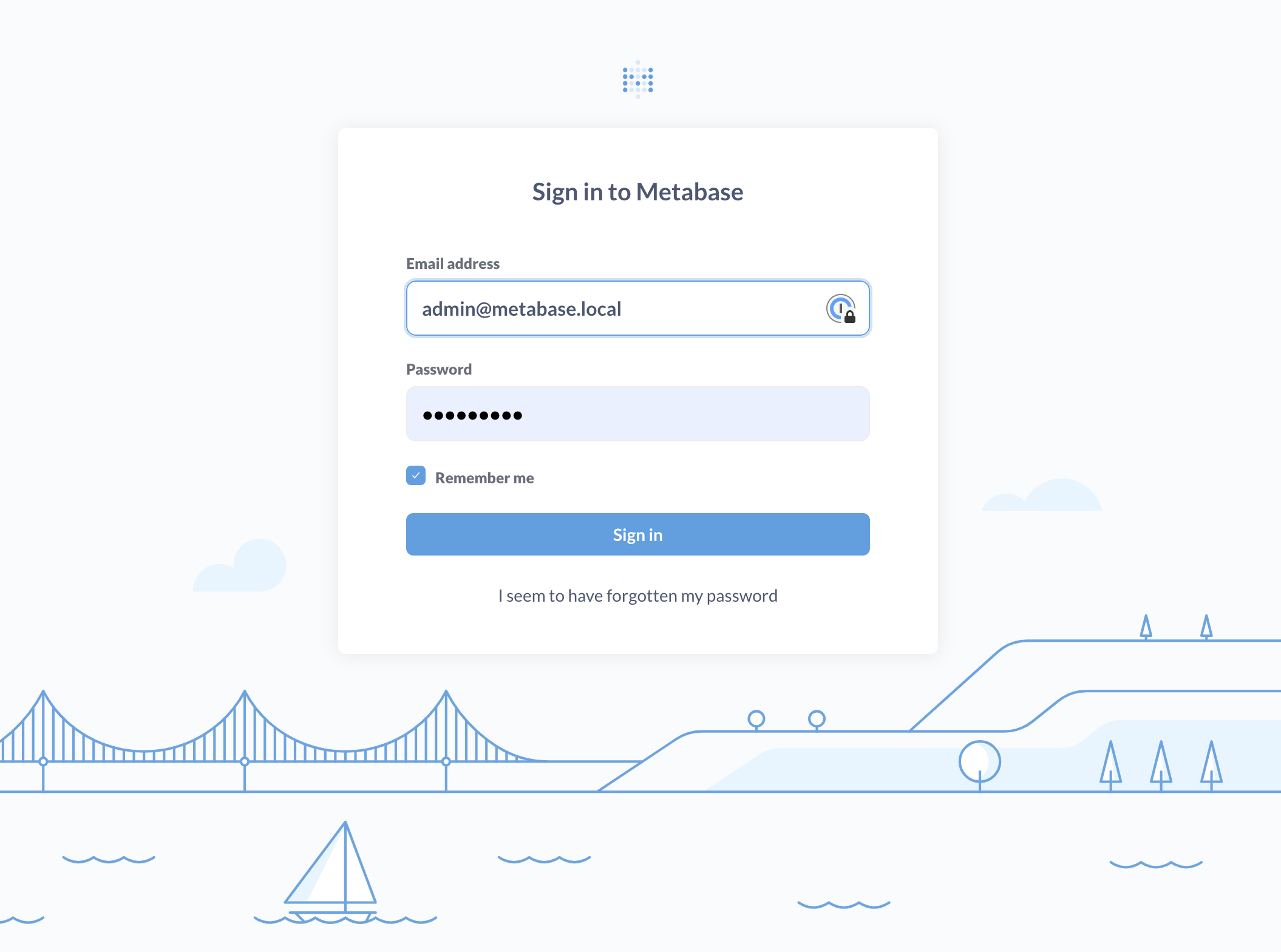
What people see when Metabase prompts them to log in.
- Lighthouse
- No illustration
- Custom
Landing page
The landing page is what people will see whenever they login. You can set the URL to a collection, question, dashboard or whatever, just make sure that everyone has access to that URL.
- Lighthouse
- No illustration
- Custom
When calculations return no results

Metabase will display this illustration when questions or dashboard cards contain no results.
- Sailboat
- No illustration
- Custom
When no objects can be found
Metabase will display this illustration when searches don’t return any results.
- Sailboat
- No illustration
- Custom
Further reading
Read docs for other versions of Metabase.